
Appearance
Use Object Storage
Use Object Storage to purchase or renew access, work with Buckets and files, and manage subscription, security, and lifecycle tasks.
Before you begin
Your role and subscription status determine which actions are available. Charges, public access, one-time keys, lifecycle deletion, and subscription cancellation require separate review.
Steps
- Select Object Storage in Main navigation.
- Review subscription status, storage usage, bandwidth, Buckets, and the current Bucket.
- If no active subscription exists, choose a plan or renewal only when offered.
- For an active workspace, open Connection guide, Subscription and billing, Buckets, Access keys, or Lifecycle rules as needed.
- Verify the target Bucket and action before uploading, sharing, changing access, or deleting data.
On your screen
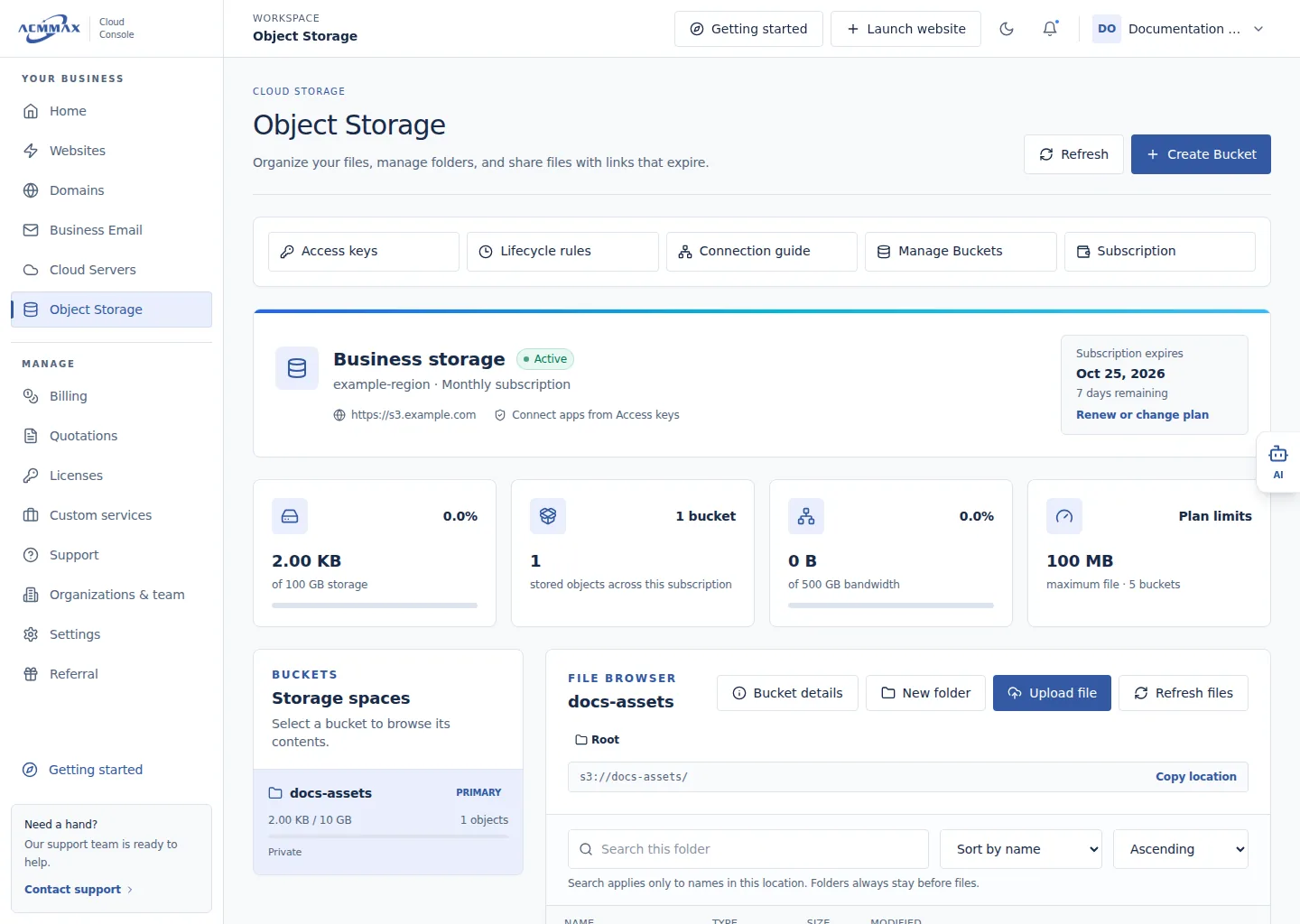
Use Object Storage. Example screen with sample data.
Check it worked
The selected task opens without changing data or billing. Read-only members can review only the information and controls available to them.
What to enter
| Area | Use it to |
|---|---|
| Workspace | Browse and manage available Buckets, folders, and files |
| Connection guide | Copy current non-secret S3-compatible connection values |
| Subscription and billing | Review plan, usage, renewal, changes, and cancellation |
| Buckets | Manage access and quota |
| Access keys | Create least-privileged keys and revoke them |
| Lifecycle rules | Permanently delete old matching objects automatically |
Need help?
| State | What to do |
|---|---|
| No or inactive subscription | Open the plan or renewal task shown by the Console. |
| Action is hidden | Review member access and subscription state. |
| Operation is processing | Wait for its result; do not repeat it. |