
Appearance
Manage WordPress websites
Use Websites to launch, migrate, maintain, and manage WordPress websites. The Cloud Console shows only the websites and actions available to your account.
Before you begin
Organization members need access to the relevant website and separate access to each management action. A hidden action is not available for your role or the current website state.
Steps
- Select Websites in Main navigation.
- Find an existing site with Search websites or domains, or choose Launch website when it is shown.
- Use Maintenance overview to review multiple sites or Migration activity to review migrations.
- Select Manage on a website to open Overview, Backups, Security, Extensions, Files, Diagnostics, and Settings.
On your screen
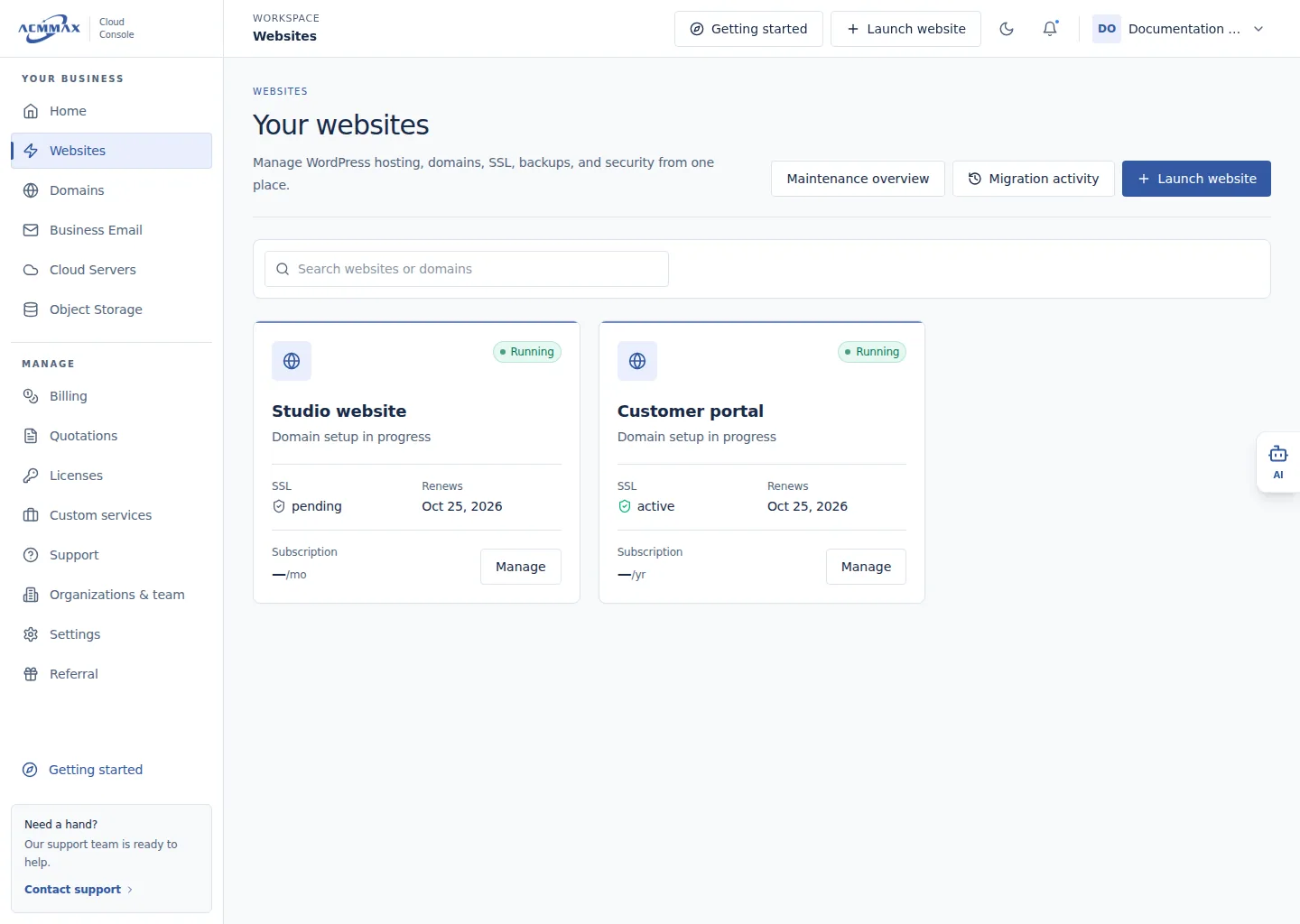
Manage WordPress websites. Example screen with sample data.
Check it worked
The selected article or Cloud Console task opens without changing a website. Creating, billing, and destructive actions always require a separate review or confirmation.
What to enter
| Area | Use it to | Important availability |
|---|---|---|
| Launch website | Create a new managed WordPress site | Shown only when creation is available |
| Maintenance overview | Compare backup, scan, and plugin status | Update details can require additional access |
| Migration activity | Read migration history and progress | History can remain available when migration actions are not |
| Manage | Work with one website | Individual tabs and actions can differ by role and status |
Need help?
| State | What to do |
|---|---|
| No websites found | Clear the search or confirm that your account has website access. |
| An action is missing | Ask the primary account to review your access, then see access and availability. |
| A paid or background action is uncertain | Do not submit it again. Review orders or contact Support. |