
Appearance
Manage account settings
Keep the primary-account profile current, control browser-local display preferences, and review sign-in security and notification settings.
Before you begin
Settings is primary-account only. Profile changes can affect registrar eligibility; security changes can sign out devices or change future verification; notification changes affect real messages.
Steps
- Open the account menu and select Settings.
- Use Profile to review identity and update contact information.
- Use Language and time zone for browser-local formatting and message preferences; Console menus remain English.
- Use Sign-in and security for password, email, Google sign-in, phone, two-factor authentication, and trusted devices.
- Use Notification preferences to control optional channels while retaining mandatory messages.
- Expand team and activity summaries when organization information is needed.
- Review unsaved changes and every security confirmation before saving.
On your screen
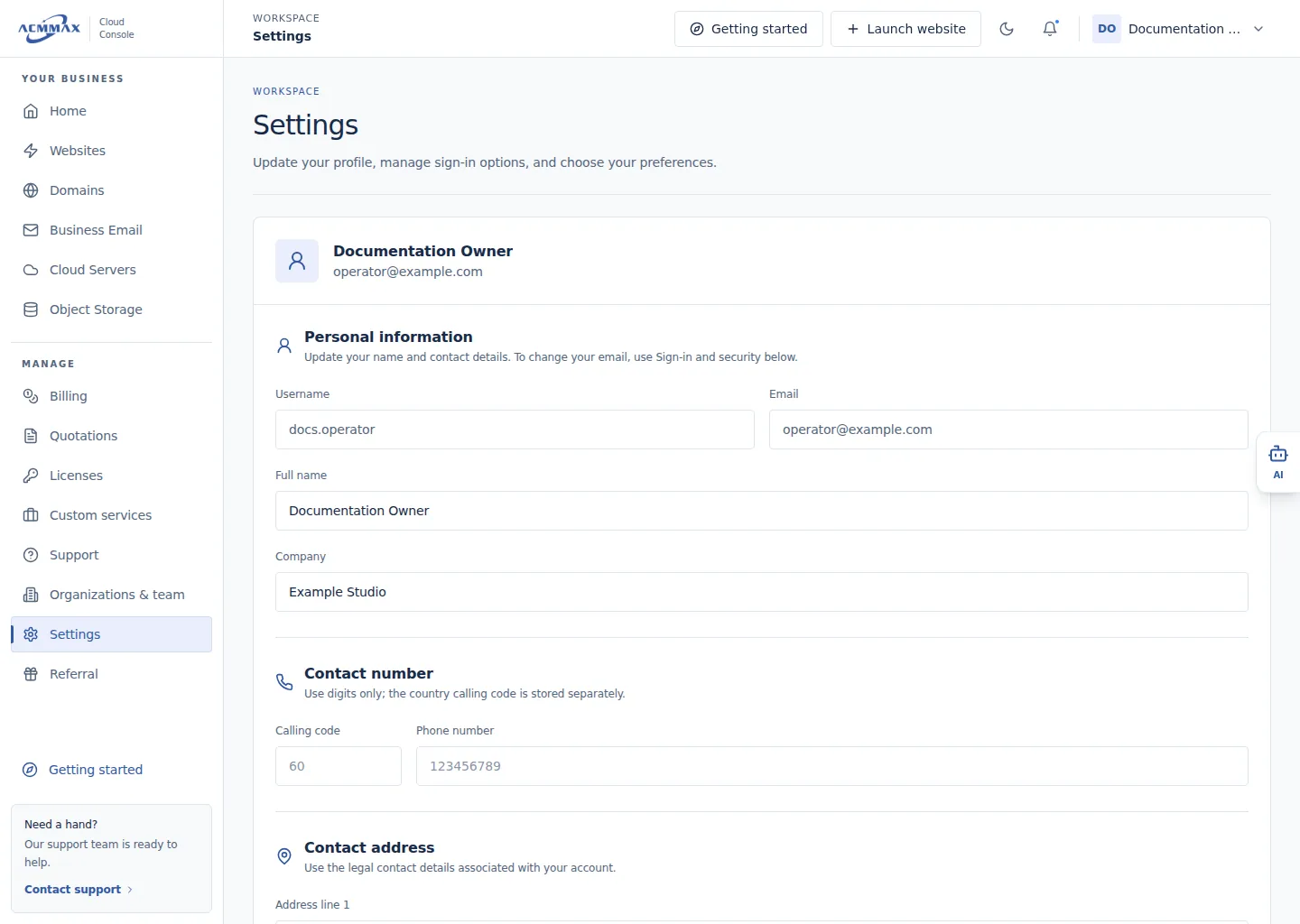
Manage account settings. Example screen with sample data.
Check it worked
The intended settings area opens without changing the account automatically.
Settings areas
| Area | Purpose |
|---|---|
| Profile | Identity, phone, address, and registrar contact readiness |
| Language and time zone | Browser-local language, date, number, invoice, and time display |
| Sign-in and security | Credentials, linked methods, verification, and trusted devices |
| Notification preferences | Optional category and channel choices |
| Team and activity | On-demand organization summaries and management links |
Need help?
| State | What to do |
|---|---|
| Settings is unavailable | Confirm you are signed in with the primary account. |
| Save conflict | Reload current values, reapply the intended change, and save once. |
| Security action result is unclear | Sign in again if required and review the security overview before repeating. |
| Unexpected message or sign-out | Secure the account and contact Support through a trusted session. |